
User Manual
Data Exports
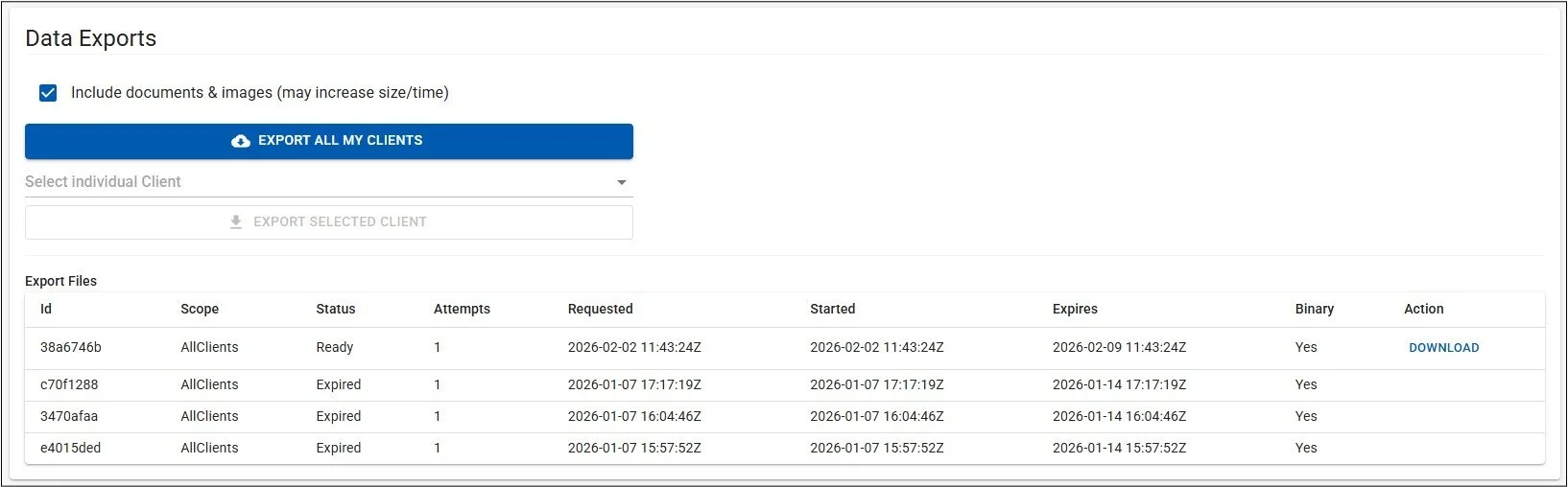
The Data Exports page is reachable from the Admin Menu (click the round Admin button in the top-right of the screen). Should you need to export some/all of your Client/Patient data from AnalystAssist, the Data Export page gives you several options. Data exports take the form of:
A zipped folder containing Client/Patient subfolders - includes json text files relating to Client/Patient records and their constituents, as well as all related Appointment record data and their constituents.
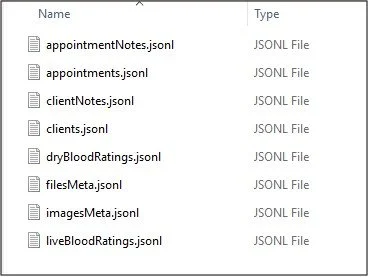
(Optional) included folders of documents & images containing copies of all Client/Patient Documents, and Appointment blood images.
Please Note: All export files stored the database will expire after 7 days for data security reasons. Library documents can be downloaded manually from the Reference Library page.
Generating Exports
Exports can be generated for:
Individual Client/Patients
All Client/Patients in the database
Exporting Individual Client/Patient data
Choose whether you want all documents included in the export file - check the ‘Include documents & images’ checkbox if so (may significantly increase the size of the export file).
Click the ‘Select Individual Client/Patient’ drop-down selector and select a specific Client/Patient record.
Click the ‘Export Selected Client/Patient’ button to generate an export file (added to the Export File table)
Exporting All Client/Patient data
Choose whether you want all documents included in the export file - check the ‘Include documents & images’ checkbox if so (may significantly increase the size of the export file).
Click the ‘Export All My Client/Patients’ button to generate an export file (added to the Export File table).
Downloading Export Files
Click the ‘Download’ link next to the export file (if the file has not yet expired) to download the zipped file to your computer.
Un-zip the file to access all internal files and folders.