
User Manual
Email Template Designer
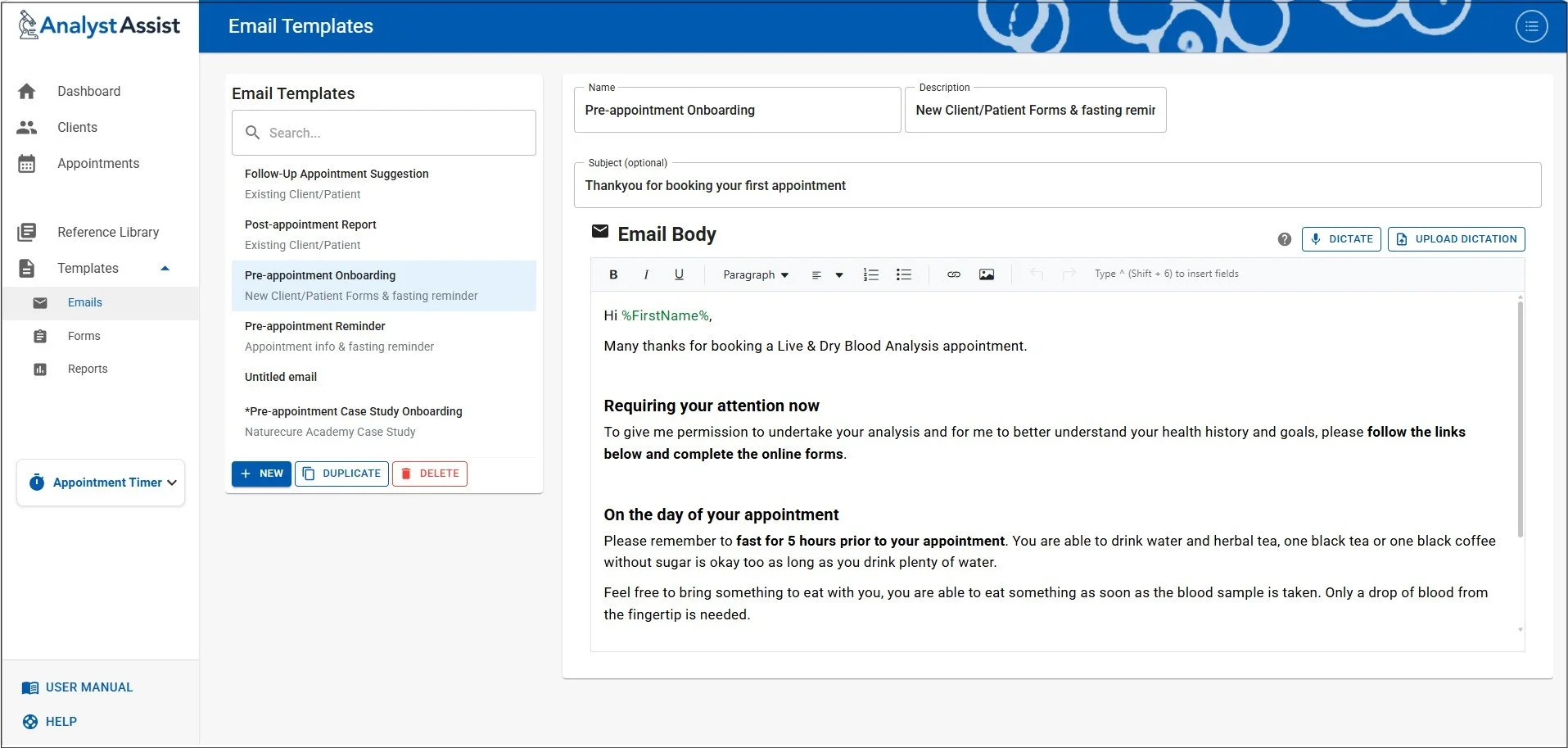
The Email Templates Designer page is where all the Email templates that are used in the Compose Email panel are managed. It is possible to add/delete or change all Email templates here.
Please Note: Access to the Admin menu is disabled from the Templates pages for all versions - select the Dashboard before clicking the Admin button.
When the Email Template Designer page is opened, the current list of Email templates in the database are displayed by Name in alphabetical order. By default, a selection of example Templates displaying a range of different content are included. These can be customised, copied or deleted as required.
The following options are available:
Open a Template in the Designer - click on any Template in the list to open it in the designer
Search for a Template - add characters in the ‘Search’ panel above to filter the list of Templates. Remove all characters in that field to reset the Template list.
Create a new Template - click the ‘ + NEW ‘ button to start a new Template.
Duplicate - when a Template is selected, click the ‘Duplicate’ button to add a copy of the selected Template to the list.
Delete - when a Template is selected, click the ‘Delete’ button to delete the Template from the database. A confirmation dialog will appear asking you to confirm your decision.
Reset the template list - see below.
Please Note: Access to the Admin menu is disabled from the Templates pages - open the Dashboard before clicking the Admin button.
Creating / Customising Templates
To create a new Email template, click the ‘ + NEW’ button - this will open a blank template screen. To customise an existing Template, select it in the list and the Template will display in the designer. The header options are:
Name - (required) a unique identifier
Description - (optional) additional information as a reminder when used in the Compose Email panel.
Subject - (optional) this field will overwrite any data in the Subject field of the Compose Email panel, when this Template is selected.
When any of the above fields are changed in any way, the ‘Save’ and ‘Cancel’ buttons appear. Clicking ‘Save’ permanently updates the Template record in the database, and ‘Cancel’ will revert the template the previously saved version.
Email Body
This section of the Template will replace any data in the Message section of the Email Composer panel when the Template is selected. This is a DictationRTE panel so you can read the instructions on how it is used here.
The panel auto-saves with any changes, and offers the option to dictate text. It is also possible to insert field tags, which will be replaced by actual Client/Patient field values on sending the email.
Resetting the Template list
Should you need to reset the Email Template list in your database, delete all the Templates in the list then navigate away from the Email Template Designer page. When you return, the list will have been re-populated with the default list of Email Templates.
Please Note: The default Template list may change over time, and resetting the Template List will permanently remove any user-created or customised Templates.