
User Manual
Report Template Designer
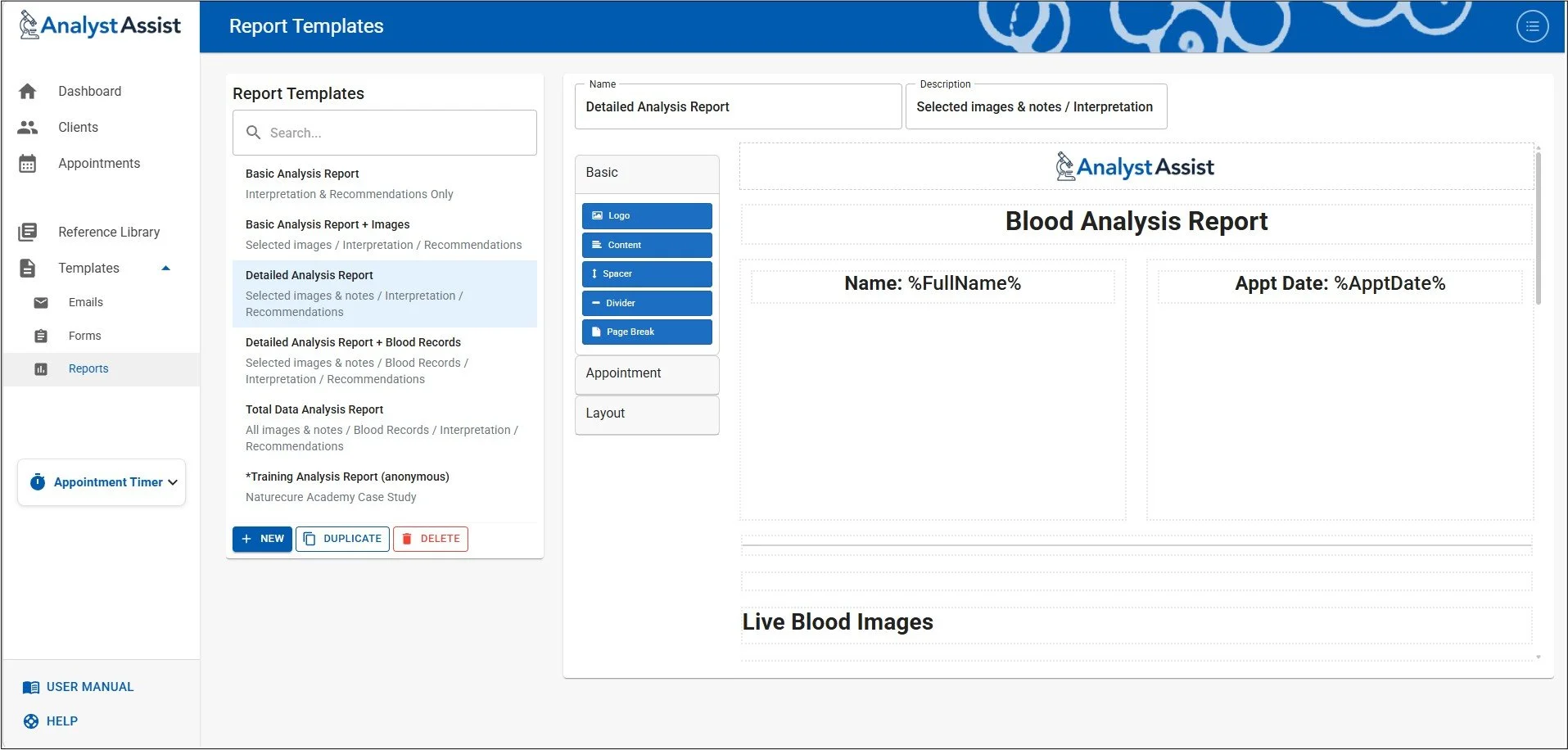
The Report Templates Designer page is where all the Report templates that are used in the Create Report panel in the Appointment Record are managed - it is possible to add/delete or change all Report templates here.
When the Report Template Designer page is opened, the current list of Report templates in the database are displayed by Name in alphabetical order. By default, a selection of example Templates displaying a range of component options are included. These can be customised, copied or deleted as required.
Please Note:Templates marked with ‘*’ are intended for use by students of the Naturecure Academy Live & Dry Blood Analysis Training Course.
The following options are available:
Open a Template in the Designer - click on any Template in the list to open it in the designer
Search for a Template - add characters in the ‘Search’ panel above to filter the list of Templates. Remove all characters in that field to reset the Template list.
Create a new Template - click the ‘ + NEW ‘ button to start a new Template.
Duplicate - when a Template is selected, click the ‘Duplicate’ button to add a copy of the selected Template to the list.
Delete - when a Template is selected, click the ‘Delete’ button to delete the Template from the database. A confirmation dialog will appear asking you to confirm your decision.
Reset the template list - see below.
Please Note: Access to the Admin menu is disabled from the Templates pages - open the Dashboard before clicking the Admin button.
Creating / Customising Templates
To create a new Report template, click the ‘ + NEW’ button - this will open a blank template screen. To customise an existing Template, select it in the list and the Template will display in the designer. The header options are:
Name - (required) a unique identifier
Description - (optional) additional information as a reminder when used in the Create Report panel.
When any of the above fields OR the Template design panel are changed in any way, the ‘Save’ and ‘Cancel’ buttons appear. Clicking ‘Save’ permanently updates the Template record in the database, and ‘Cancel’ will revert the template to the previously saved version.
Drag & Drop Template Layout
The Template Designer is a drag & drop WYSWYG editor, meaning that it is a visual representation of the layout, structure and data contents of the report, rather than an identical representation of the final report. This makes it easy to move blocks or “components” round to get the desired layout.
You can move the components around to change their order, and even nest components inside certain others.
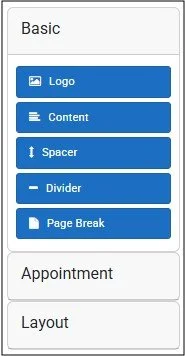
The sidebar on the left of the design panel includes draggable tabs for all of the components available, organised into groups - Basic, Appointment & Layout. To open a group, click the group name in the sidebar and the group will open up or collapse (when clicked a second time).
Below is a description of what each component adds to your template, but the best way to become familiar with each option is to experiment with adding them to a template, and testing how it appears in a report by clicking the ‘View’ button. This generates a one-time preview of a report using real Appointment data. You can select which Appointment is used in a drop-down list within the preview panel.
Basic - simple formatting/design components
Logo - add a moderate sized, centre-aligned logo (either your own custom logo added in the Settings page, or the default AnalystAssist logo).
Content - a configurable component that allows text, images and more (see the ‘Content’ components User Manual page)
Spacer - add an empty line to vertically space your components
Divider - add a horizontal line for separating sections of the Template
Page break - ensure the following components in the Template appear at the top of the next page in the Report.
Appointment - embed Appointment Record data
Live/Dry blood images (all) - create a grid of all Live/Dry Blood images in the appointment (text-free)
Live/Dry blood images (selected) - create a grid of Live/Dry Blood images in the appointment that have their thumbnail checkbox checked (text-free).
Live/Dry blood images/notes (all) - create a vertical list of all Live/Dry Blood images in the appointment with their Image Notes panels next to them.
Live/Dry blood images/notes (selected) - create a vertical list of all Live/Dry Blood images in the appointment that have their thumbnail checkbox checked, with their Image Notes panels next to them.
Live/Dry blood record sheet - a 2-column table with all rated Live/Dry blood Indications and their ratings, from the Appointment Record.
Interpretation/Recommendations - outlined panels containing the relevant reporting sections from the Appointment Record.
Layout - These components allow you to change the layout within sections of the report, adding outlined areas, tables or side-by-side sections .
Once you have added a layout component, you can then insert Basic or Appointment components within them.
Well - a simple outlined panel with a gray background.
Columns - a set of side-by-side cells you can add components to (number of cells configurable)
Panel - a simple outlined panel with an optional title above it
Table - a multi-row set of cells you can add components to (number of rows and columns configurable)
Adding new components
To add a new component to the template designer:
Click and hold the blue component sidebar tab with your left mouse button and drag the component tab to the main Template panel. Release the mouse button to site the component. This can be above or between existing components (which will move to make space), or below the last component in the list. It can also be within a ‘Layout’ component, creating a nested effect.
If the component has configurable settings, the component ‘Edit’ panel will display - make any required changes.
Click the component ‘Save’ button to insert the component, or ‘Cancel’ to return to the Template designer without the new component inserted.
Remember to click the Template master ‘Save’ button to confirm all changes, or ‘Cancel’ to revert to the previously saved version.
Component hover menu
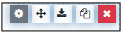
To manage components already in the Template, move your mouse icon over the template. The component’s hover menu will appear.

To open the component’s edit menu again to make configuration changes (if it has one):
Click the ‘Settings’ icon with your left mouse button. Make any required changes, then click the component ‘Save’ button to confirm the changes, or ‘Cancel’ to revert to the previous configuration.
Remember to click the Template master ‘Save’ button to confirm all changes, or ‘Cancel’ to revert to the previously saved version.
To move a component to a different place in the Template:
Click and hold the ‘Cross’ icon with your left mouse button. Move the mouse and the component will be dragged to the new position with the other components in the Template making space for it.
Release the mouse button to insert the component in its new position.
Remember to click the Template master ‘Save’ button to confirm all changes, or ‘Cancel’ to revert to the previously saved version.
To copy a duplicate of a component to a different position (or even to a different template):
Click the ‘Copy’ icon (twin pages)
All components will now have a ‘Paste’ icon added to their hover menus
Move the mouse to the component ABOVE where you want to insert the copy
Click the ‘Paste’ button in that component’s hover menu and the duplicated component will be inserted below.
Remember to click the Template master ‘Save’ button to confirm all changes, or ‘Cancel’ to revert to the previously saved version.
To remove a component:
Click the red ‘X’ icon to delete the component. If the component has other components nested within it, a dialog will ask if you want to continue and lose the nested components as well.
Remember to click the Template master ‘Save’ button to confirm all changes, or ‘Cancel’ to revert to the previously saved version.
Resetting the Template list
Should you need to reset the Report Template list in your database, delete all the Templates in the list then navigate away from the Report Template Designer page. When you return, the list will have been re-populated with the default list of Report Templates.
Please Note: The default Template list may change over time, and resetting the Template List will permanently remove any user-created or customised Templates.