User Manual
Account Screen
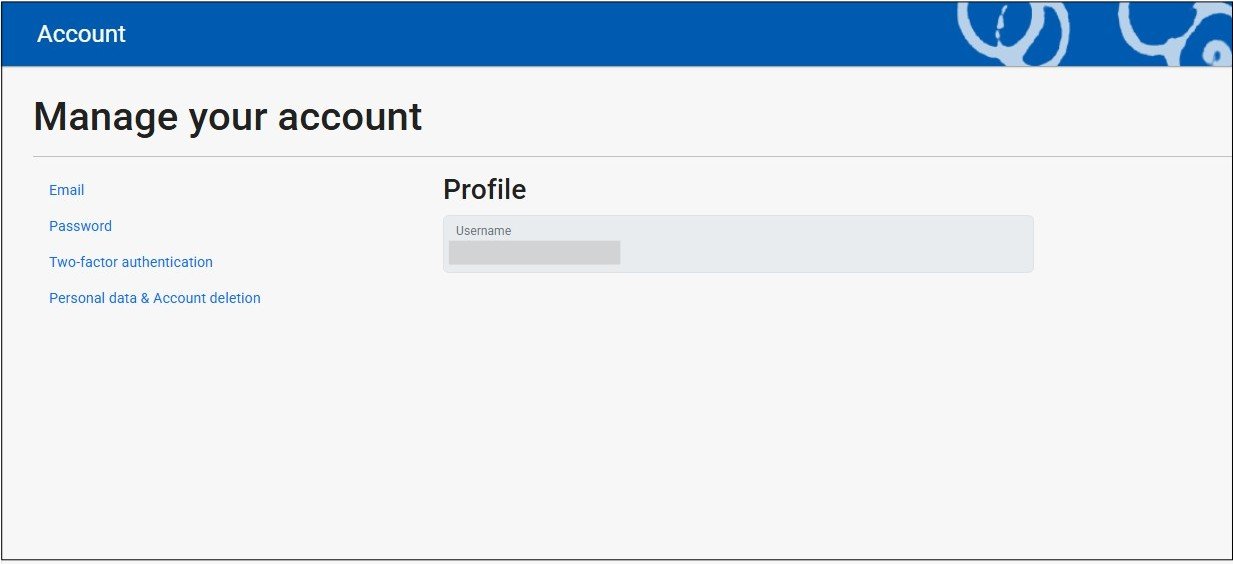
The Account screen is reachable from the Admin Menu (click the round Admin button in the top-right of the screen), and is where your main User account information can be changed or downloaded, two-factor authentication can be managed, and the account can be deleted.
To change the email address of your User account (which is used during app login and with your Stripe account), select the Email link in the Account menu.
Enter the new email address in the ‘New email’ field and click the ‘Change email’ button.
Follow the instructions for confirming your new email address in the confirmation email that AnalystAssist sends to your new address.
Login in with the new email address in the Login screen.
Change User account email address

Change User account password
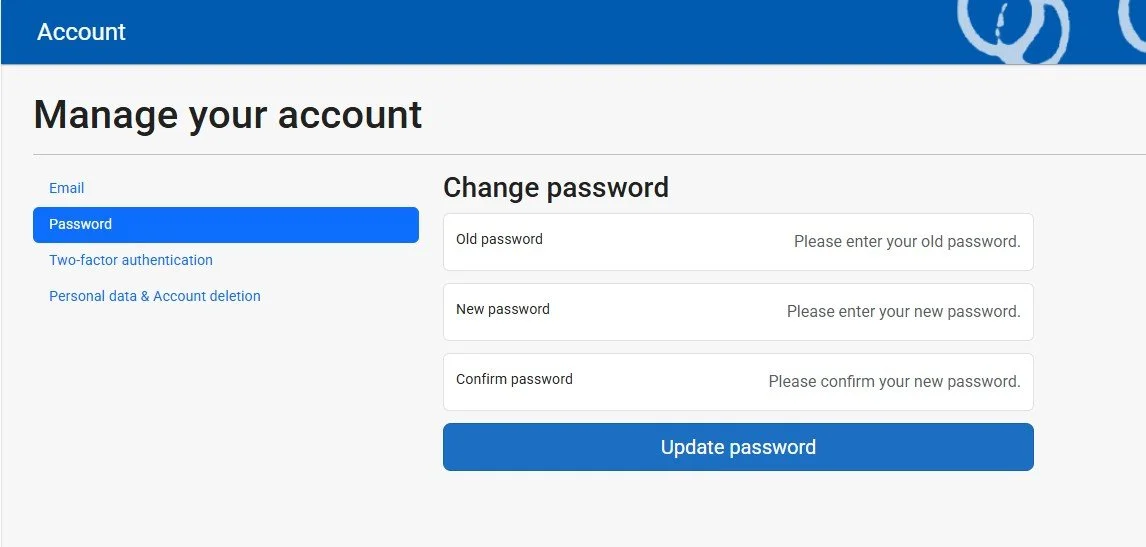
To change the password of your User account (which is used during app login), select the Password link in the Account menu.
Enter the old password and then the new password twice in the relevant fields. Then click the ‘Update password’ button.
Use the new password the next time you login (make sure to update your browser’s saved password for AnalystAssist).
Please Note: Alternatively you can change your password during the Login process, by clicking the ‘Forgot your password?’ link. You will be sent a password reset link by email - follow the instructions then login with your new password.
Two-factor authentication
Two-factor authentication is an enhanced security feature during login. As well as requiring the account password to login, this feature requires users to also input a code generated in an authenticator app.
Please Note: When logging in for the first time, users will be asked if they want to set up two-factor authentication. Users can choose to enable it at that stage, or delay the suggestion for 14 days.
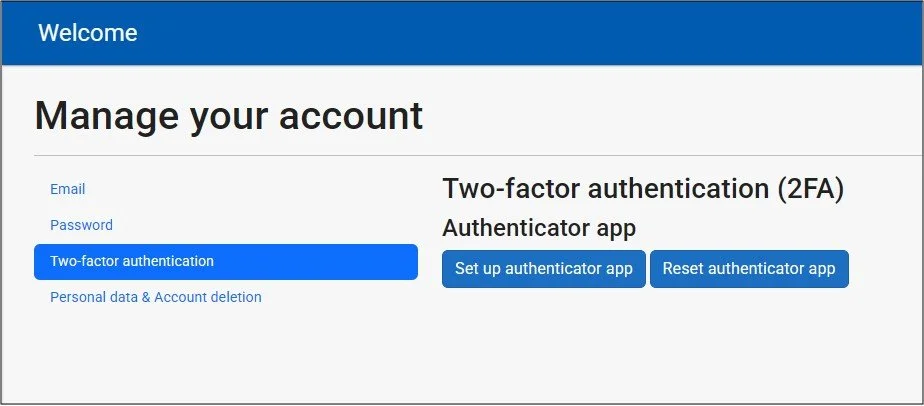
To configure or disable two-factor authentication at any other time, select the ‘Two-factor authentication’ link in the Account menu.
Set up authenticator app
Two-factor authentication is an enhanced security feature during login. As well as requiring the account password to login, this feature requires users to also input a code generated in an authenticator app, such as Microsoft Authenticator for Android and iOS or Google Authenticator for Android and iOS.
Please Note: When logging in for the first time, users will be asked if they want to set up two-factor authentication. Users can choose to enable it at that stage, or delay the suggestion for 14 days.
To configure or disable two-factor authentication at any other time, select the ‘Two-factor authentication’ link in the Account menu.
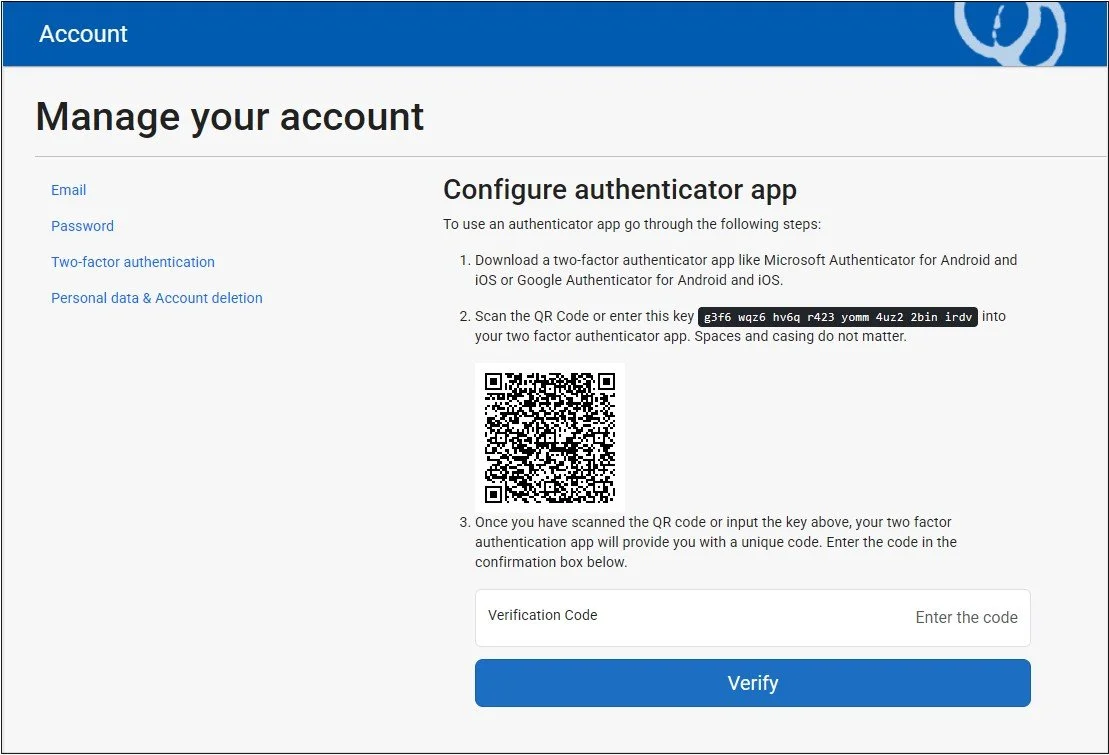
Install your chosen authenticator app on your mobile device.
Follow the instructions on the screen in AnalystAssist to input a verification code, and click the ‘Verify’ button.
Take a note of the one-time recovery codes that AnalystAssist displays. In the situation that you don’t have access to the authenticator app for any reason, these recovery codes can be used in place of the code that your authenticator app will generate, each being usable once. Make sure to store these in a secure place.
In future, whenever you log in, Analyst Assist will ask you to consult your authenticator app which will provide you with a security code. Enter this code to complete the login process.
Disable two-factor authentication
There are two ways to disable two-factor authentication:
Click the ‘Disable 2FA’ button which switches 2FA login off, but does not reset the link to your authenticator app. To re-enable 2FA click the ‘Set up authenticator app’ and instead of creating a new link, enter the code from the authenticator app again - 2FA will be re-enabled with the same account and recovery codes.
To completely disable two-factor authentication, click the ‘Reset authenticator app’ button. This removes the link to the authenticator app (which you would have to set up again if required), and makes the recovery codes void.
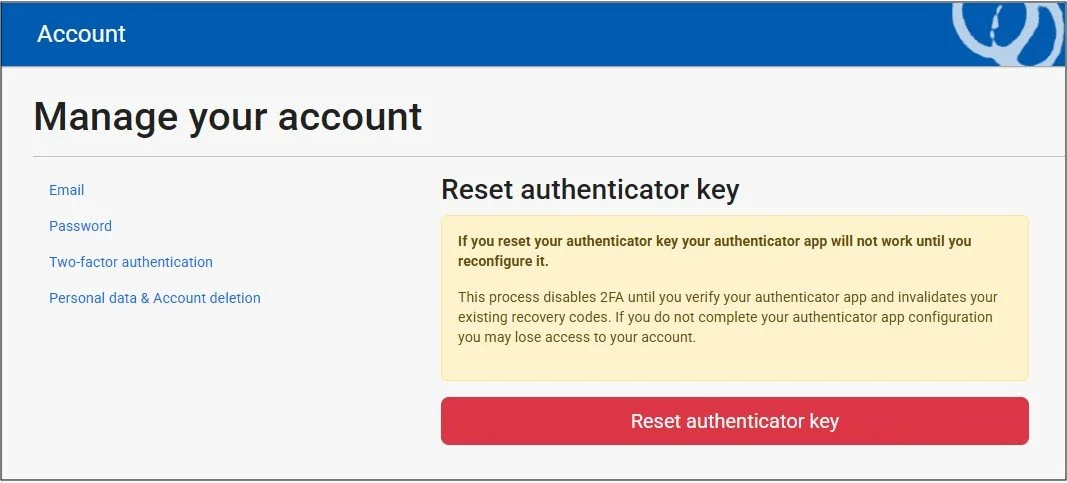
Click the ‘Reset authenticator key’ button to disable two-factor authentication.
Please Note: Disabling the authenticator app will also make any existing recovery codes redundant. A new set will be provided if two-factor authentication is enabled again in the future.
Reset recovery codes
Should you lose the recovery code list, or want to make them void, click the ‘Reset recovery code’ button to generate a new list of 10 single-use codes to replace the old list.
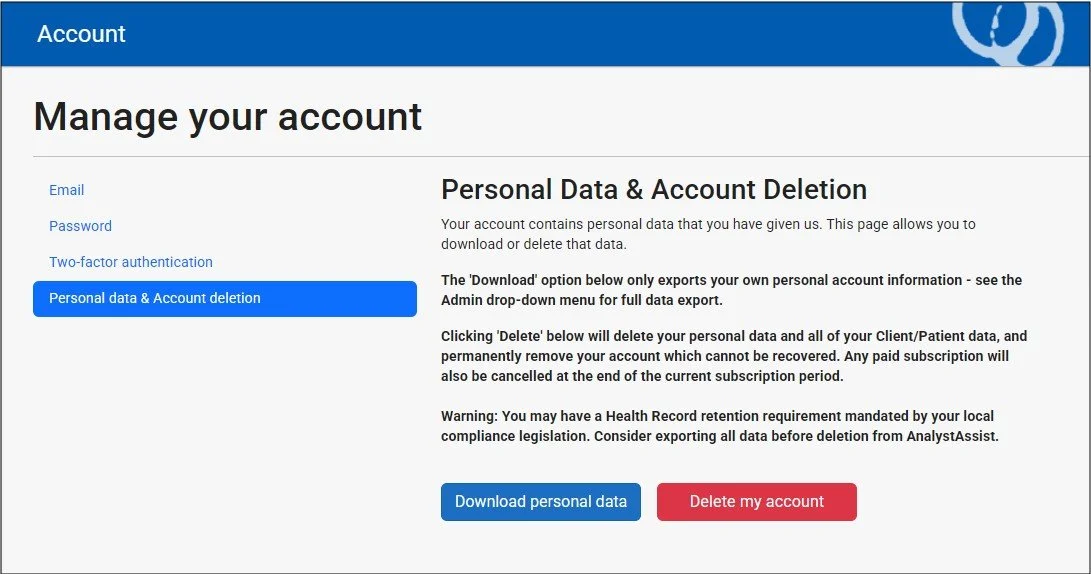
The last tab in the Account menu is the ‘Personal data & Account deletion’ tab. On this tab you can:
Download your User account information - download a .json format file containing your Account ID, login email and authenticator key.
Delete your account - permanently delete your personal data and all of your Client/Patient data, and permanently remove your account (non-recoverable). Any paid subscription will also be cancelled at the end of the current subscription period.
Please Note: You may have a Health Record retention requirement mandated by your local compliance legislation. Consider exporting all data before deletion from AnalystAssist.
Download personal data / delete your account