
User Manual
Subscription & Billing
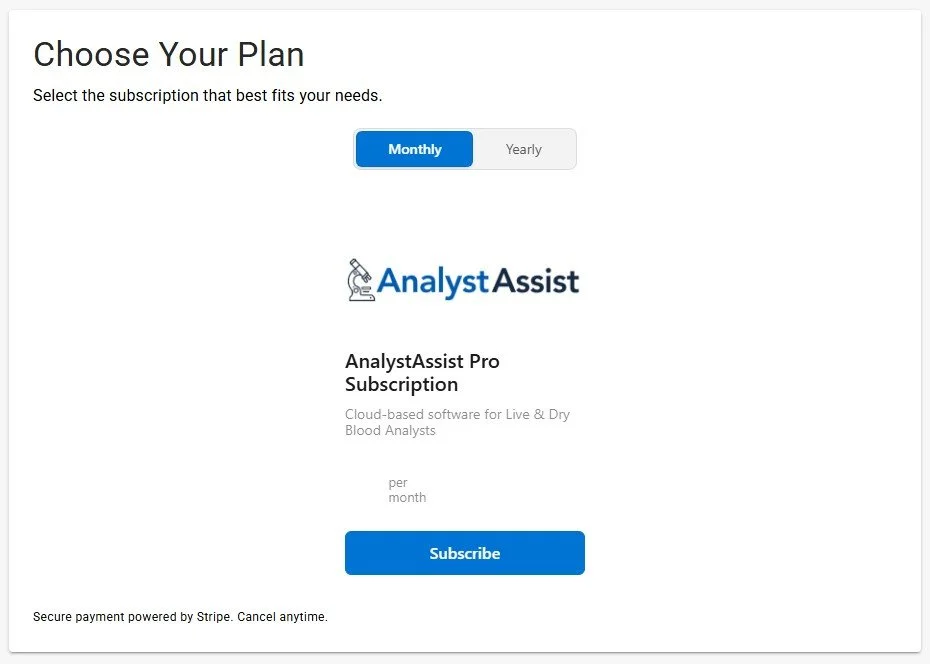
Select which payment schedule you require and then click the ‘Subscribe’ button to be taken to Stripe’s payment portal.
In Stripe’s payment portal, select a Payment method, add your Contact information and any Promotion code, then click the ‘Pay and subscribe’ button.
Please Note: You can can cancel your subscription at any time and the subscription will not renew at the end of the current subscription period.
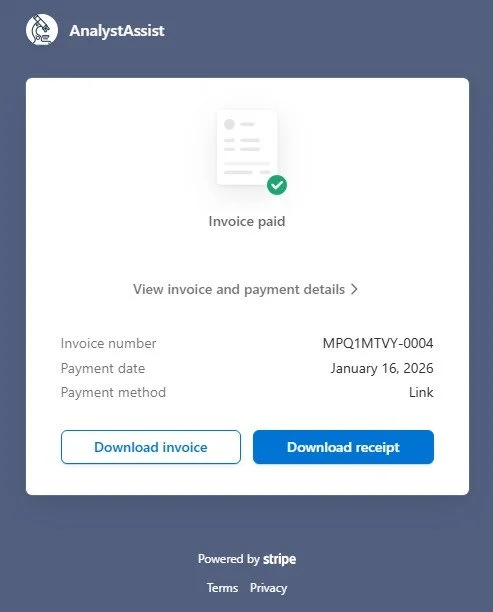
When the payment has been processed, you will see a Payment confirmation page.
Click your browser’s ‘Back’ button twice to return to AnalystAssist where your new subscription will be active.
You will shortly be sent a Payment Confirmation email that includes a link to download a payment invoice and/or receipt.
Managing an existing subscription / view billing information
When you do have an active subscription to AnalystAssist, opening the Subscription & Billing page will re-direct you to your Stripe account page, which includes:
Information about your current subscription including whether it is paid monthly/annually and when the next billing date is (when your current subscription period ends).
Payment methods stored in the Stripe portal.
Billing information such as your address and telephone number.
Invoice history for all previous payments.
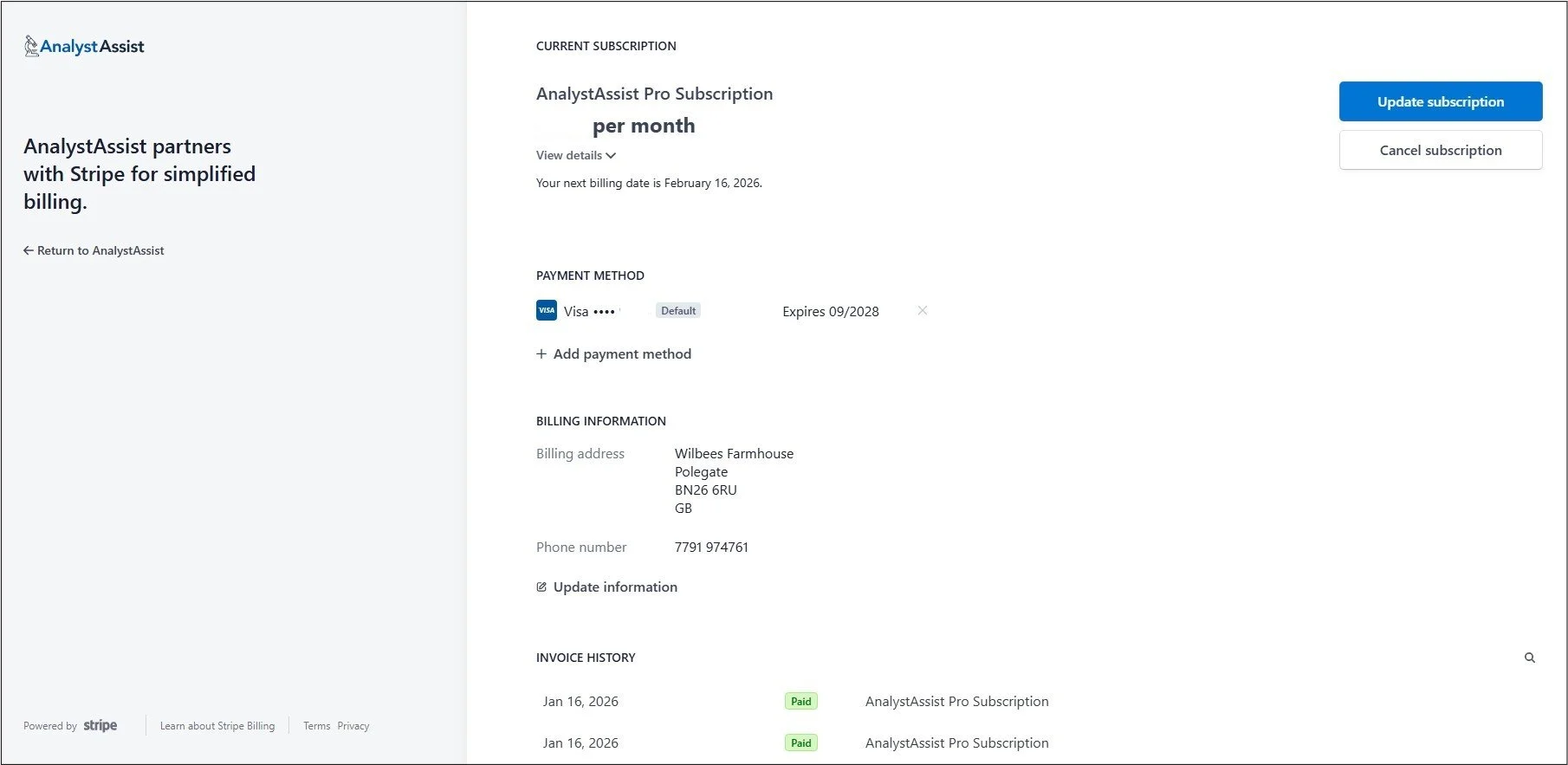
From this page you can:
Change your subscription schedule from monthly to annual or vice versa - click the ‘Update subscription’ button to be taken to the Stripe payment screen.
Cancel your existing subscription at the end of the current subscription period - click the ‘Cancel subscription’ button. Please Note: Deleting your AnalystAssist account will automatically cancel any active subscription.
Change your payment method - click the ‘+ Add payment method’ link.
Change your billing information - click the ‘Update information’ link.
View/download invoices or receipts - click the relevant Invoice row in the Invoice History table and then click the ‘Download invoice’ or ‘Download receipt’ button
To return to the AnalystAssist Dashboard click the ‘Return to AnalystAssist’ link on the Billing screen.
The Subscription & Billing page is reachable from the Admin Menu (click the round Admin button in the top-right of the screen) and is where your AnalystAssist subscription is created / managed, and where all billing information is displayed for existing/previous subscription payments.
Please Note: All subscription payment for AnalystAssist is handled by Stripe on their secure, third-party portal, and AnalystAssist does not collect or store any payment information.
Subscribing to AnalystAssist Pro Version
If you do not have a current subscription to AnalystAssist’s Pro Version, when you visit the Subscription & Billing page you will see the Stripe Pricing Table, offering you monthly or discounted annual payment options.
Please Note: To see the prices in your local currency, simply select a plan and click the ‘Subscribe’ button. This does NOT commit you to any purchase but displays the Stripe portal checkout which shows prices in your local currency.