User Manual
Main Layout / Dashboard
Navigation Menu
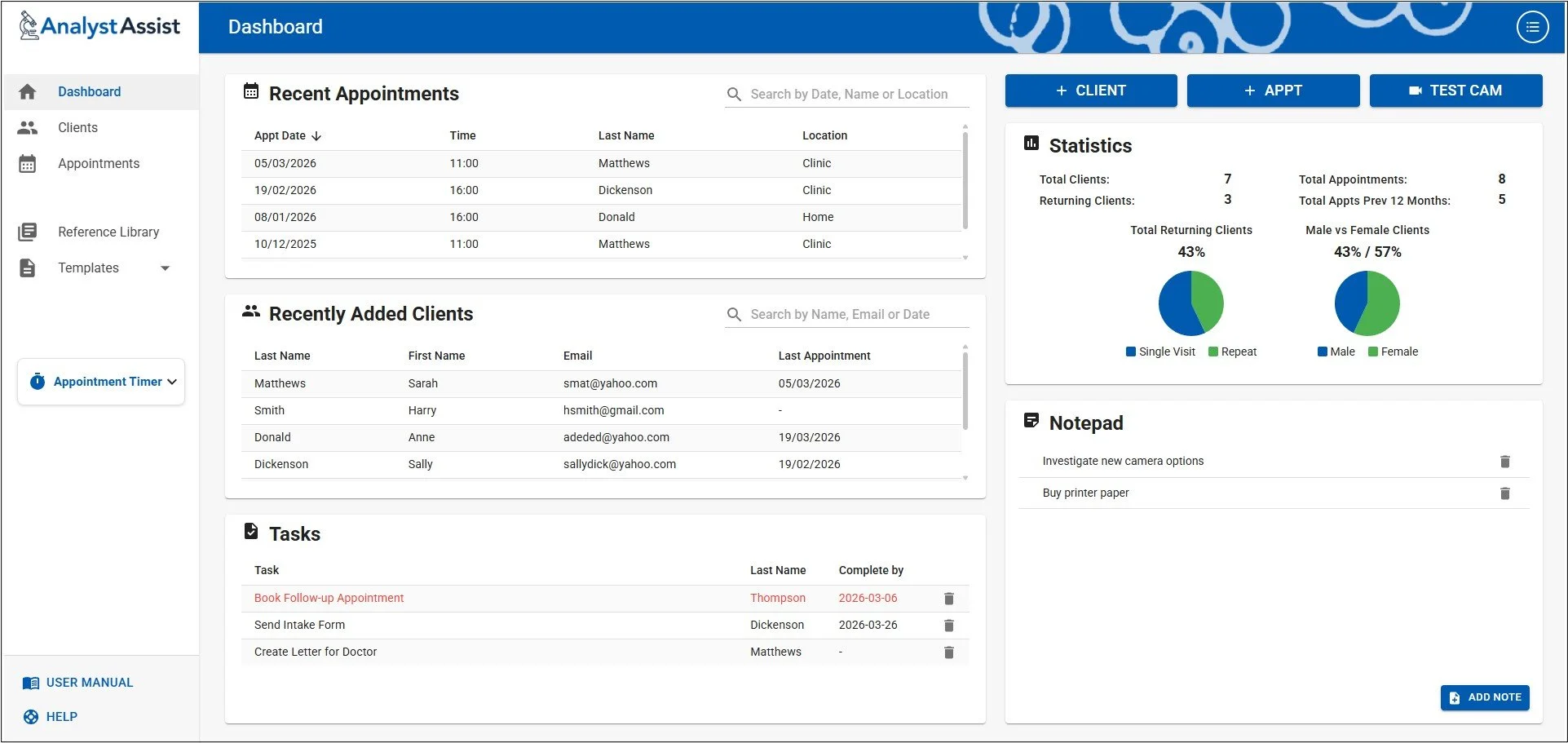
This sidebar menu contains all the main access points for navigating throughout AnalystAssist and can be used at any time:
Dashboard - Returns user to the main Dashboard page at any time.
Clients - Opens the Client/Patients List page, that displays all Client/Patient Records in your database, sorted by date Added descending (most recent first).
Appointments - Opens the Appointments List page, that displays all Appointment Records in your database, sorted by Appointment date/Time (descending).
Reference Library - Opens the file storage page for documents (e.g. pdf handouts, info sheets) that can be attached to emails being sent to any Client/Patient.
Templates - Click to open the collapsible sub-menu. The links open the pages for adding, editing and deleting the Email, Form and Report Templates used throughout AnalystAssist.
Appointment Timer - A simple timer application for timing appointment duration.
User Manual - Whichever screen you are viewing in AnalystAssist, clicking the ‘User Manual’ link in the Nav menu will open the relevant page of the User Manual in a new browser tab.
Help - Opens the support section of the AnalystAssist website in a new browser tab. Join the community forum or contact support.
Dashboard
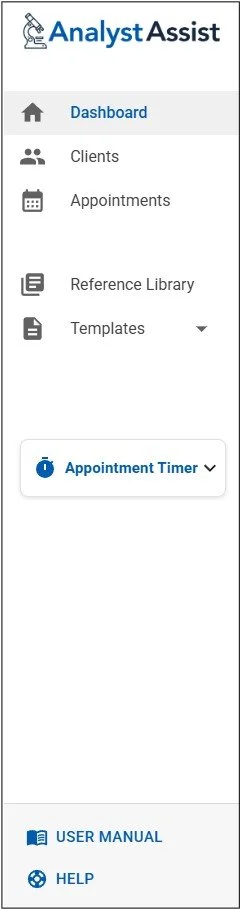
Recent Appointments - List of the most recent appointments up until today. Clicking an entry will open the relevant Appointment Record.
Recently Added Clients/Patients - List of new Clients/Patients. Clicking an entry will open the relevant Client/Patient Record.
Tasks - Summary of all Client/Patient tasks sorted in order of urgency or date created - due or overdue Tasks appear red. Clicking an entry will open the relevant Client/Patients Record. Click the ‘trashcan’ icon next to a Task to delete it from the database.
+ Client/Patient button - Create a New Client/Patient Record. See the Client Record User Manual page for more information.
+ Appt button - Create a New Appointment Record. Initially, you will be asked to select the relevant Client/Patient for this new Appointment or to create a new one. See the Appointment Record User Manual page for more information.
Test Cam button - Opens a test Live View panel displaying a preview of the live feed from your microscope camera, to allow you to check it is accessible by AnalystAssist. It is possible to capture images and videos (up to 60 secs) but they save to the Downloads folder of your browser in this version. During analysis the LiveView feature is usually accessed from Appointment records. See the Live View panel User Manual page for more information.
Statistics - A display of the most relevant statistics related to your Clients/Patients.
Total Clients/Patients - a count of the Client/Patient Records in your database.
Total Appointments - a count of the Appointment Records in your database.
Returning Clients/Patients - the number of Clients/Patients with more than one Appointment Record.
Total Appts Prev 12 Months - a count of the Appointment Records in the previous 12 months.
Total Returning Clients - a pie chart indicating the percentage of Clients/Patients that have more than one Appointment Record.
Male vs Female Clients/Patients - a pie chart indicating the split of Client/Patient Records that have a gender marked as ‘Male’ or ‘Female’.
Notepad - An editable list of Notes items. Click ‘Add Note’ to add a new Note, then overwrite ‘New Note’ and click ‘Save’ or the ‘Enter’ key to store. Click the ‘Escape’ key (not Mac) or elsewhere on the screen to undo changes, and the ‘trashcan’ icon to delete a Note.
Admin Menu
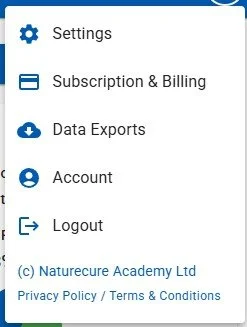
Click the List icon (3 lines with circle around it) in the top App Bar to open the Admin Menu
Settings - Navigate to the Settings page to customise the various Settings for how AnalystAssist functions and looks. (Settings manual page)
Subscriptions & Billing - Manage your subscription to AnalystAssist and access billing information (Subscription & Billing manual page)
Data Exports - Export all your Client/Patient and Appointment data. (Data Exports manual page)
Account - Manage your User Account: Change your email address or password, enable or manage Two-Factor Authentication, download your personal User data, and delete your account completely. (Account Screen manual page)
Logout - Logout of the AnalystAssist platform manually. This will periodically happen automatically (see Settings manual page).
Privacy Policy / Terms & Conditions